We’ve talked about the basics of Goodnotes 6… the AI features, and even items you can add to your handwritten notes. But here’s the big question: is it right for you? Because just having cool features isn’t enough. The app has to fit into your workflow and actually make your life easier.
Handwriting conversion
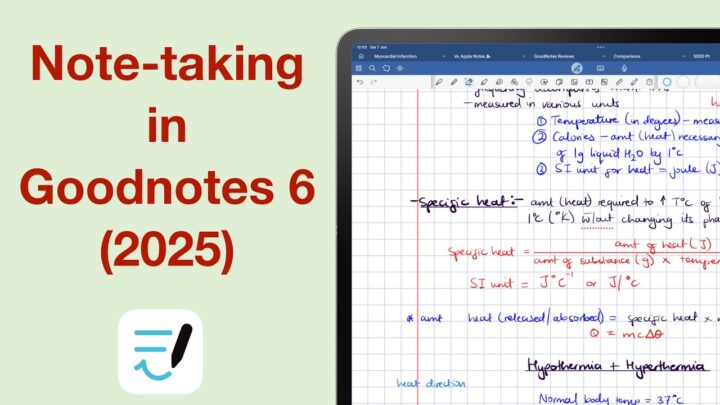
Let’s start with one of Goodnotes’ biggest strengths: handwriting conversion. It’s brilliant. Your notes keep their original ink colour and size, and everything becomes searchable—once the app indexes them. Converted equations? Still editable. And in our testing, OCR in Goodnotes 6 gets a perfect score. If handwriting search and conversion matter to you, Goodnotes nails it. Of course, you might get a few errors here and there.
iPadOS Support
The lack of true dark mode is frustrating—Goodnotes 6 changes the interface, but your documents remain unchanged.
The AI writing tools in Goodnotes aren’t the iPadOS ones, though they resemble them. We know this because the ones in Goodnotes use up your monthly AI credits. They’re still experimental and… we haven’t been able to get them working. If you’ve had better luck, let us know in the comments.
Live text input and widgets
To its credit, Goodnotes supports live text input, Scribble, and it’s got a handy quick note widget. There’s also decent data detection: dates, emails, links—you name it. So iPadOS support is good… just missing a few features.
Search demo with previews
Goodnotes absolutely shines when it comes to search. The previews? Some of the best you’ll find in a handwriting app. You get enough detail to quickly find what you’re looking for. Even with only two filters —notes and outlines— the search tool works.
Universal search means you can search through everything on the homepage: written notes, typed notes, PDFs, outlines, study sets… It’s all there.
Ask Goodnotes, diagrams, spelling
Like many iPad handwriting apps, Goodnotes has its own AI tools. Once your notes are indexed, you can use AI to summarize, quiz yourself, generate mind map diagrams, and even tidy up your handwriting—straighten it out, check for spelling mistakes, and make space where you need it. Remembering the page range you want to work on is always a massive pain, though.
For now, AI credits are free and reset every month. What’s not clear is where your data is being stored. If the app is indexing your notes, a copy might be sitting in their servers. Ask Goodnotes runs on-device, though, so that creates some grey areas. We covered all of this in a dedicated video, so check that out if you want a deeper dive.
Editing your pages? Goodnotes covers most of the basics. But—manually adding pages at the end of notebooks? That’s still a thing. Other apps have automated that, it’s a bit surprising that Goodnotes hasn’t.
You also can’t expand a page, create a template from an existing one, or extract individual pages. Scroll options are decent—you can go vertical or horizontal—but a 2-page view would really level things up.
Hyperlinks between pages
One thing we love? Hyperlinks. You can link between pages in the same notebook—or across different notebooks. That’s a game-changer for navigating your notes, even if it is only limited to text. We love that now it’s very easy to go back to the page you came from. The option is difficult to bring back when it disappears, though. Maybe it’ll be better if it didn’t disappear at all.
Cloud backup options
We’d love to lock folders, though. Right now, we can only lock individual notebooks. But they remain unlocked when you close them, and there is no way to manually lock them, unless you close the app. Not ideal, but it’s a step in the right direction. Much better than not having the locking feature at all. So, we look forward to locking folders too.
But you get solid backup options, multiple formats, and you can even exclude files from syncing. Not bad at all.
Real-time collab
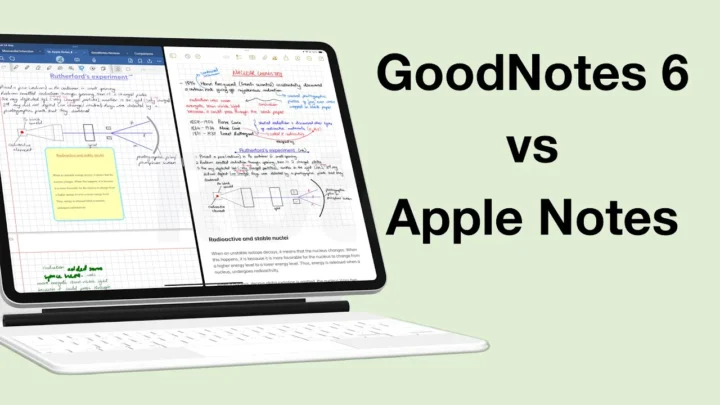
When it comes to collaboration, Goodnotes is second only to Apple Notes. Yes, it’s still link-based and tracking changes could be better, but for a third-party handwriting app? This is as good as it gets.
You can collaborate in real time and chat right inside the document. It’s a powerful tool for classrooms and small teams that like to handwrite things down rather than type them out.
Conclusion
Collaboration alone makes Goodnotes brilliant for classrooms and small teams that want to handwrite their thoughts. In classrooms especially, it makes submitting assignments easier and group projects more practical. If collaboration is a big part of your work, then you definitely want to look into Goodnotes.