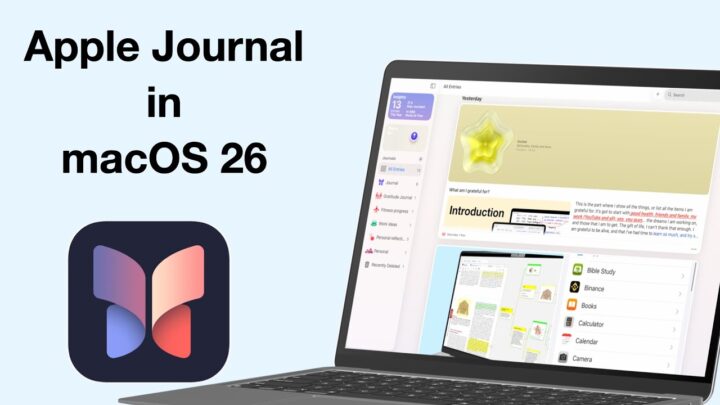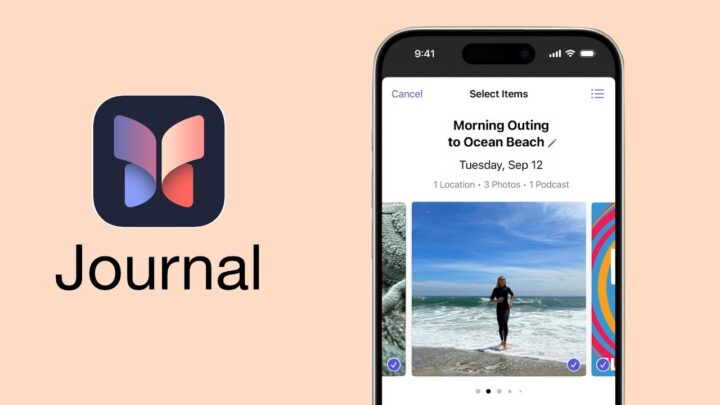
Apple Journal has finally made its way to the iPad and Mac—and I have to say, it feels like we’ve been waiting forever. Even though it’s only been a year. It started off as a solid app on the iPhone, but now in iPadOS 26? It’s got real potential. Is it actually any good, though? Let’s break it down.
Pricing
So let’s talk pricing. Apple Journal is 100% free. No subscriptions, no hidden charges. Which is refreshing—especially now when some journaling apps are charging ridiculous amounts. Journey, for example, now costs $200 for a one-time purchase. That’s just wild. So yes, a free journaling app from Apple is very welcome.
UI & Design
Now, about the interface. It’s clean. Minimalist. Modern. You can collapse the sidebar to give yourself more writing space—and that’s fantastic on the iPad’s bigger screen.
But here’s the catch: you can’t customise it. No themes. No colour options. No alternate views. If you like personalising your space, you’re out of luck. It’s polished, sure, but also quite plain.
Creating Journals
You can create multiple journals, which I absolutely love. One for prayer, one for travel, one for work—you name it. Your entries can be typed, handwritten, or a mix of both.
And you get to choose whether they stay on your device or sync across your Apple ecosystem. Plus, it supports Face and Touch ID, so your private thoughts actually stay private.
Handwriting
Of course, I started with handwriting. We get the full Apple PencilKit experience—including the new reed calligraphy pen from Apple Notes. The canvas is basic, nothing fancy, but it gets the job done.
What I really love is that your handwriting sits inline with your typed text. You can resize it, move it around—it feels like you’re journaling in a natural flow.
But I’ll be honest—it feels more like a sketchpad than a proper handwriting journal… for now.
Typing and Formatting
When you type, you get the basics: bold, italic, underline, strikeout. There’s a bit of text colour too—which makes me wonder why we still don’t have this in Apple Notes.
No highlighter, though. And you won’t find headers, titles, or rich formatting. Lists are basic—just numbered or bulleted. It’s simple, and it works, but it’s not exactly inspiring.
Attachments
You can add photos, videos, and audio recordings—without worrying about file sizes. Seriously. No trimming, no compressing. Huge win.
Audio has to be recorded inside the app, though. Dragging in external files didn’t work for me—but the built-in recorder does transcribe your voice, and that’s incredibly useful. Maybe it’s just the type of audio files I tried to bring in. Let me know if you’ve had any better luck.
Working with Photos
You can add photos from your camera, Photos Library, or Files. But there seems to be a limit to how many you can add—Apple doesn’t say what that limit is, or how it works. Is it size or total number of attachments? We don’t know, coz the app doesn’t say.
The good news? We can finally wrap text around our images. Not perfectly—it’s either left or right, not centred—but still way better than being forced to stack everything at the top of your entry.
Smart Logs
Apple Journal can log things like your location and mood. I’m not the biggest fan of the mood chart—it’s a bit too detailed for a quick log—but if you’re tracking mental health, it’s really well done. It even links to the Health app, which is a smart move.
You also get suggestions, reminders to journal, and some basic stats to keep you motivated. If you are motivated by those kinds of things.
iPadOS 26 Integration
The app supports dark mode, Live Text, and even Apple’s AI writing tools. But what really stands out is data detection—you can tap on dates or times in your entries to create calendar events or reminders. I love that.
There are widgets too, if you like those on your Home Screen. Personally, they feel a bit in-my-face—but hey, options are always nice.
What’s Missing?
There’s one thing that feels like a huge miss—Scribble. It makes the most sense for a journaling app. So sadly, we can’t handwrite our entries, to get them converted to text in real time. And for someone like me, who doesn’t use a keyboard with the iPad, that would’ve been perfect. Hopefully it’s coming soon.
Search
Search is great. You can search across all your journals, or within a single entry. And there’s a find-and-replace tool too, if you ever need to edit on the fly.
Final Thoughts
So, is Apple Journal on iPad perfect? Not at all. But is it a fantastic start? Absolutely.
It’s free, private, and does the basics really well. If Apple adds Scribble, better formatting, and maybe some templates down the line, this could easily become one of the best journaling apps out there.
Let me know—are you using Apple Journal? What do you love about it, and what are you still waiting for? Drop your thoughts in the comments.